
TL;DR
A CSV lookup table in Revit is an external spreadsheet file that replaces nested IF formulas. Instead of writing 10 nested conditions, you define the data in a .csv file, attach it to the family, and reference it with a single lookup() formula. One table can handle hundreds of size combinations, material values, or dimension rules — with zero formula complexity.
Key Takeaways
- ✓A lookup table replaces nested IF chains — one formula references the entire table.
- ✓The CSV file must be placed in the correct Revit lookup tables directory to be found by the family.
- ✓The first column of the CSV is the lookup key; remaining columns are output values.
- ✓Any parameter type can be an output — dimensions, text, Yes/No, materials.
- ✓When the input value does not exactly match a row, Revit interpolates between the two nearest rows (for numeric keys).
- ✓Lookup tables make families dramatically easier to maintain — update the CSV, not the formula.
The Problem with Nested IF Statements
If you have ever tried to handle more than three or four size variations in a Revit family, you know what happens. The formula field starts to look like this:
Four conditions. Four levels of nesting. Already difficult to read. Now imagine adding a fifth size, or realising you also need to control Height and Depth the same way. You end up maintaining dozens of nested formulas that are impossible to audit and easy to break.
The lookup table solves this completely.
What a Lookup Table Actually Is
A Revit lookup table is a plain CSV file — a spreadsheet saved as comma-separated values. The file defines a relationship between an input value (the key) and one or more output values. When Revit evaluates the formula, it reads the file, finds the matching row, and returns the output value. No nesting. No conditions. Just a reference.
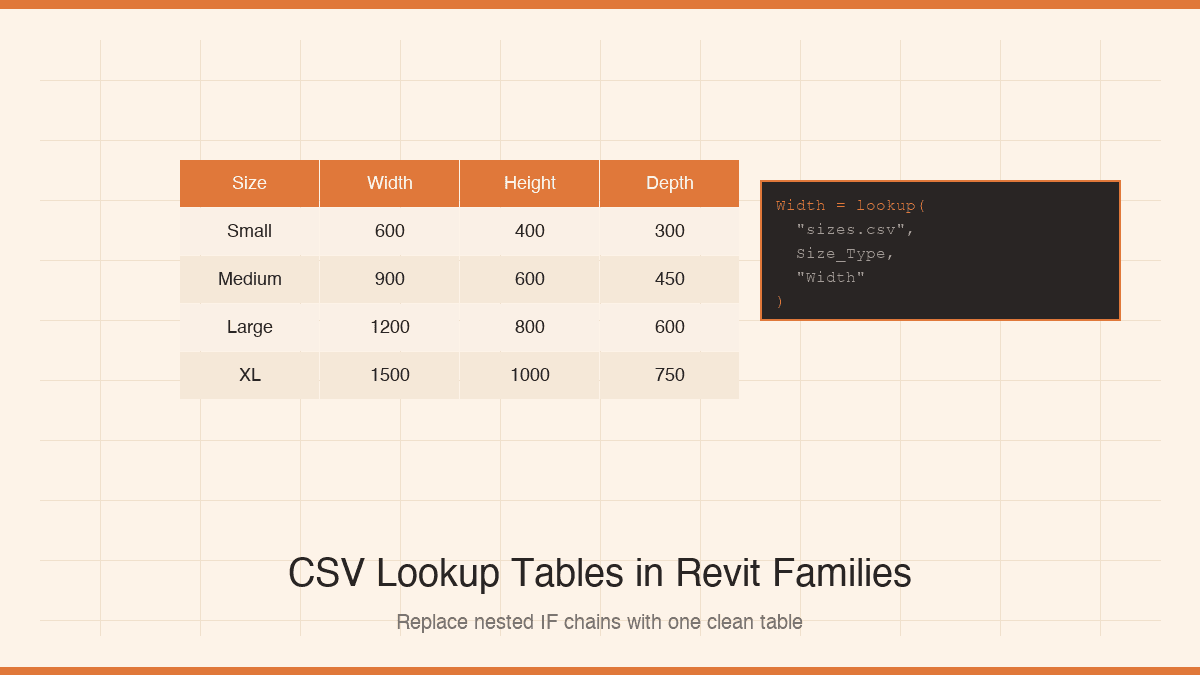
The same four-size example from above becomes a CSV file that looks like this:
And the formula in the family becomes:
One line. Any number of rows in the CSV. Add a new size — edit the CSV file, not the formula.
The CSV Format: What the Headers Mean
Revit lookup tables use a specific header format. Each column header has two parts separated by ##: the parameter name and the parameter type.
##other##— text or discrete values (used for the key column)##length##— dimension values (millimeters when using metric)##angle##— angle values in degrees##number##— unitless numeric values
The key column (first column) must always be ##other## if you are matching text values, or a numeric type if you are interpolating between numbers.
Where to Place the CSV File
This is where most users get stuck. Revit looks for lookup tables in a specific folder on your machine. The default location depends on your Revit version and operating system:
Your IT administrator may have configured a different shared path via the Revit.ini file. Check with your BIM manager if the family cannot find the CSV after you load it.
Once the file is in the correct folder, Revit finds it automatically when the formula references it by file name. You do not need to include the full path in the formula.
Attaching the Table to the Family
- Open the family in the Family Editor.
- Go to Family Types (the dialog where you manage parameters).
- Click Manage Lookup Tables at the bottom of the dialog.
- Click Import and select your CSV file.
- The table is now embedded in the family — it travels with the family file.
After importing, you can reference it in any formula using thelookup() function.
Writing the lookup() Formula
The lookup() function takes three arguments:
- filename.csv — the name of the CSV file (exactly as imported)
- input_parameter — the parameter whose value you are looking up (the key)
- output_column_name — the column header name (without the ## type suffix)
For the sizes example, to control three parameters from the same table:
Height = lookup("sizes.csv", Size_Type, "Height")
Depth = lookup("sizes.csv", Size_Type, "Depth")
Three formulas. All controlled by one CSV. Add a new size variation — edit one file.
Numeric Keys and Interpolation
When the key column contains numbers (not text), Revit interpolates between rows. This is useful for structural sizing tables where you want the output to scale smoothly with a numeric input like span length or load value.
For example, a beam sizing table keyed by span in meters will return the exact value for known spans, and calculate an interpolated value for a span that falls between two rows. This makes lookup tables useful for engineering families where values must scale continuously.
Common Mistakes
- Wrong header format: Missing the ## type suffix causes Revit to reject the table silently. Double-check every column header.
- File not in the lookup tables directory: The formula will return an error. Import the file through Manage Lookup Tables — do not reference an arbitrary file path.
- Input value not in the table: If the key column is text and the parameter value does not exactly match any row, the formula returns an error. Validate input values with a Yes/No check or constrain the parameter to a list.
- Editing the embedded CSV after import: Revit embeds the table in the family. If you edit the source CSV on disk, you must re-import it via Manage Lookup Tables. The family does not automatically pick up external changes.
When to Use a Lookup Table vs. a Formula
Use a formula when the relationship is mathematical — Width = Length * 0.5 is cleaner as a formula than a table. Use a lookup table when:
- You have more than three or four discrete size options
- The relationship is not mathematical (arbitrary values per size)
- The data comes from a manufacturer spec sheet or standard table
- Non-BIM staff need to maintain the values (a CSV is easier to edit than formula syntax)
CSV lookup tables are covered in depth in Chapter 9 of Mastering Revit Family Formulas, including worked examples with real manufacturer data, interpolation edge cases, and a debugging method for lookup errors. If you are building families with complex sizing logic, this is the chapter that will change how you work. For the full list of topics covered, see the table of contents. If you are new to Revit formulas, start with why every BIM professional should master Revit family formulas.
Go deeper on lookup tables
Chapter 9: CSV Lookup Tables — Full Walkthrough
Real examples. Interpolation. Debugging. In the complete Revit Family Formulas bundle.