
TL;DR
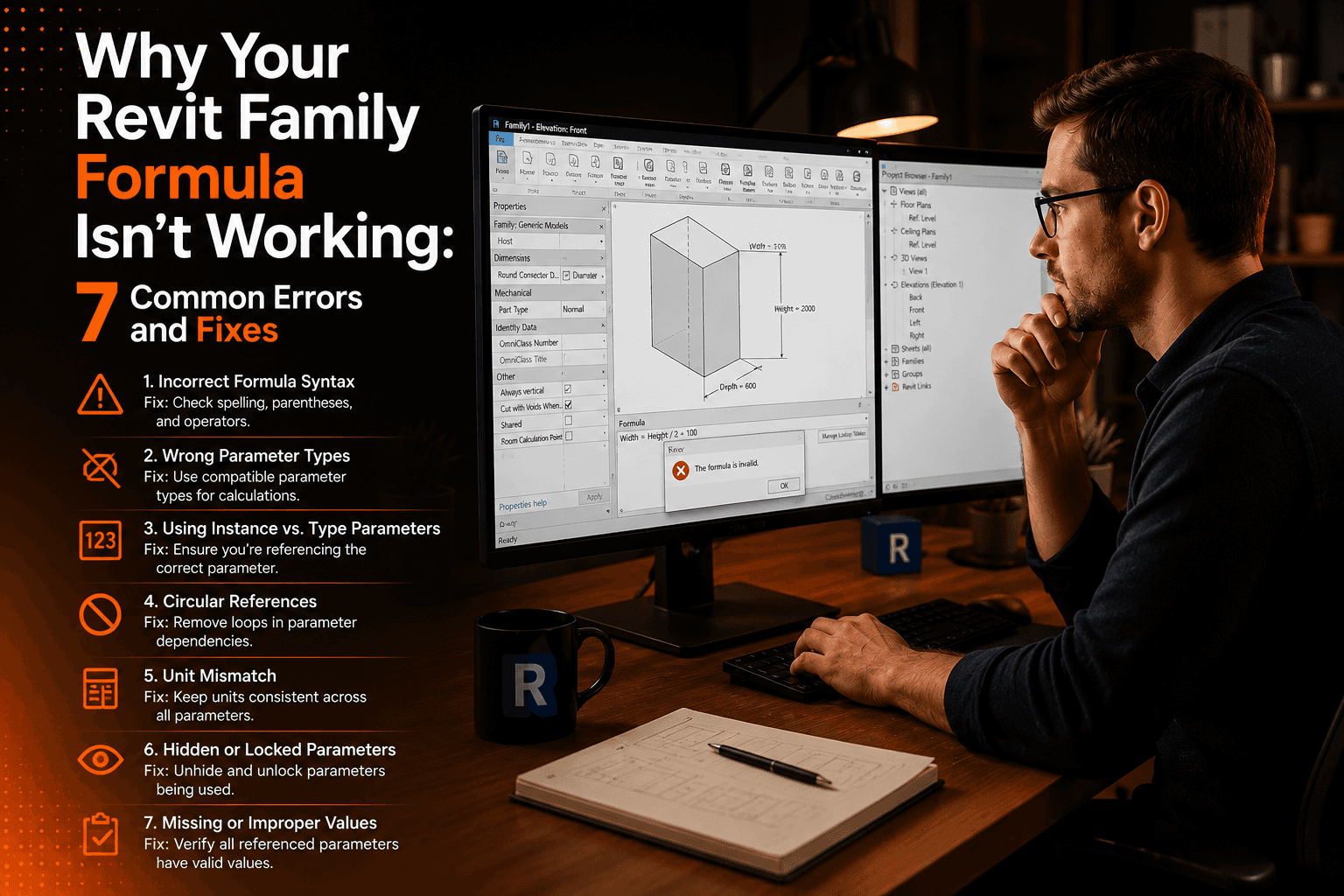
Revit formula error messages are deliberately vague — the message tells you something is wrong, not where. The 7 most common causes are: inconsistent units, inconsistent data types, unbalanced parentheses, circular references, wrong parameter scope, misspelled parameter names, and reporting parameters used as outputs. Each has a specific fix that takes under two minutes once you know what to look for.
Key Takeaways
- ✓Revit error messages are vague — the message tells you something is wrong, not where.
- ✓Inconsistent units (missing mm, °, etc.) cause the majority of formula errors.
- ✓Both branches of an IF statement must return the same parameter type.
- ✓Circular references are the one error Revit names explicitly — fix by deciding which parameter is the driver.
- ✓Type parameters cannot reference Instance parameters in formulas.
- ✓Parameter names are case-sensitive and space-sensitive — always copy-paste from the parameter list.
- ✓Reporting parameters are inputs only — they cannot receive formula assignments.
You open the Family Types dialog. You type the formula. You click OK. Revit says: “The formula for parameter Width is inconsistent.” No line number. No pointer to which part failed. You change something, try again — same error. You change something else — different error, same vagueness.
The seven errors below cover the vast majority of what you will encounter. Each includes what the error looks like, what causes it, the exact fix, and how to prevent it.
Inconsistent Units
Revit message
“The formula for parameter [X] contains an inconsistent unit.”
What causes it
A numeric constant in the formula has no unit, but the parameter expects one. Revit will not implicitly convert between types.
The fix
Prevention tip
Treat every bare number in a formula as a potential error. Before saving, scan each constant and ask: what type is the output parameter? All constants must match.
Inconsistent Data Types
Revit message
“The formula for parameter [X] is inconsistent.”
What causes it
The two branches of an IF statement return different parameter types — for example, one branch returns a length and the other returns a plain number.
The fix
Prevention tip
Before writing an IF formula, decide what type the output parameter is. Both branches must return that exact type.
Unbalanced Parentheses
Revit message
“Invalid formula — or the formula bar turns red immediately.”
What causes it
Every IF( must be closed by exactly one ). Nested IF statements require one closing parenthesis per level. A single missing parenthesis breaks the entire formula.
The fix
Prevention tip
Count opening and closing parentheses before saving — they must be equal. See the Revit IF statement tutorial for a full breakdown of nesting logic.
Circular References
Revit message
“There is a circular reference between the following parameters: [X] and [Y].”
What causes it
Parameter A drives Parameter B, and Parameter B also drives Parameter A. Revit cannot resolve which value to calculate first.
The fix
Prevention tip
Before writing any formula chain, map the dependency direction. Arrows must flow one way only — from driver to derived. If any arrow points back, you have a circular reference.
Wrong Parameter Scope
Revit message
“The formula saves without error but the value never changes as expected.”
What causes it
Type parameter formulas cannot reference Instance parameters. A Type formula that references an Instance parameter will silently produce incorrect results.
The fix
Prevention tip
Check the T/I icon next to every parameter you reference. Type formulas can only use Type parameters. See Revit Type vs Instance parameters for the full decision framework.
Misspelled Parameter Names
Revit message
“Parameter [name] does not exist — or the value is always zero.”
What causes it
Revit parameter names in formulas are case-sensitive and space-sensitive. Door_Width and door_width are different parameters.
The fix
Prevention tip
Always copy-paste parameter names from the list — never type them from memory. Establish a naming convention (PascalCase or Snake_Case) and use it everywhere in the family.
Reporting Parameter Used as Output
Revit message
“Reporting parameters cannot be used in formulas — or the value never updates.”
What causes it
Reporting parameters are read-only. They can be inputs in other formulas but cannot receive formula assignments.
The fix
Prevention tip
Identify your reporting parameters before writing formulas. They are inputs, never outputs.
Debugging Checklist
7 Questions to Run Through Before Spending More Than 5 Minutes
- 1Do all parameter names match their current names exactly? (Case, spaces, underscores)
- 2Does every numeric constant have an explicit unit? (mm, °, m, etc.)
- 3Do both branches of every IF statement return the same parameter type?
- 4Does every opening parenthesis have exactly one matching closing parenthesis?
- 5Is there a circular dependency between parameters?
- 6Is the output parameter the correct scope (Type or Instance) for what it references?
- 7Is any parameter in the formula a Reporting parameter?
Go deeper
The complete formula curriculum — all 10 types
Printable debugging checklist PDF, worked repair examples, and the HD Video Vault. 40% off at $18.
For the IF statement errors specifically, see the full Revit IF statement tutorial. For the parameter scope question, see Revit Type vs Instance parameters.