
TL;DR
A Revit lookup table is a CSV file that replaces nested IF chains. Instead of seven levels of nesting, you write one size_lookup() formula that reads from a spreadsheet. The CSV is embedded in the family on import. The five most common mistakes: wrong delimiter, hidden spaces in headers, missing blank first cell, wrong type notation, and saving as XLSX instead of CSV.
Key Takeaways
- ✓A lookup table replaces nested IF chains — one size_lookup() formula references the entire CSV.
- ✓CSV header format is strict: blank first cell, ColumnName##type##unit for every output column.
- ✓size_lookup() takes 4 arguments: filename, input parameter, output column name, default value.
- ✓The CSV is embedded in the family on import — team members do not need the CSV file.
- ✓After editing the source CSV, you must reimport it — the family does not auto-update.
- ✓Use lookup tables for arbitrary data (spec sheets); use formulas for mathematical relationships.
Here is a door frame formula that handles seven sizes using nested IF statements:
Seven levels of nesting. Adding an eighth size means finding the right level inside the chain, inserting the new condition, and recounting parentheses. One mistake anywhere breaks every size.
Here is the same logic as a lookup table formula:
One line. The CSV handles any number of sizes. Adding a new size means opening a spreadsheet and adding a row — no formula editing required.
How Revit Lookup Tables Work
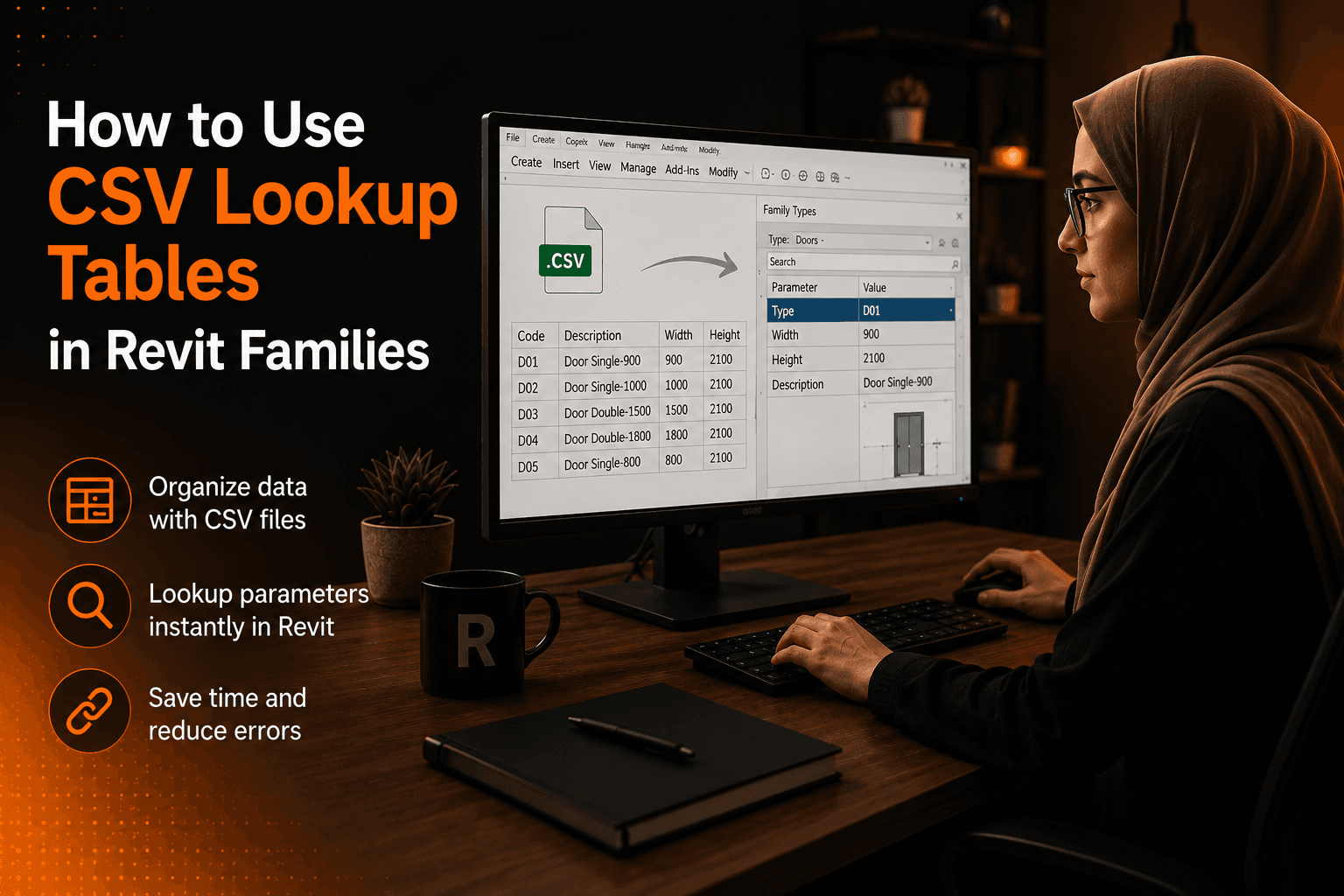
A Revit lookup table is a CSV file defining a relationship between one input value (the key) and one or more output values. When Revit evaluates the formula, it opens the CSV, searches the first column for a value matching the input parameter, reads the value from the specified output column in that row, and returns it.
The CSV is embedded in the family file on import — it travels with the family, so project team members do not need the file on their machines.
The CSV File Structure
The header row is the critical part — it tells Revit what type of data each column contains.
Header format: ColumnName##type##unit
The first cell of the header row must be blank. Every subsequent column uses the type notation:
| Data type | Header syntax |
|---|---|
| Text / key column | ##other## |
| Length (mm) | ##length##millimeters |
| Length (m) | ##length##meters |
| Angle (degrees) | ##angle##degrees |
| Unitless number | ##number## |
| Yes/No | ##yesno## |
The size_lookup() Function — 4 Arguments
| Argument | Description |
|---|---|
| "filename.csv" | Exact filename of the imported CSV — case-sensitive, with .csv extension, in quotes |
| input_parameter | The parameter whose value is used as the key — no quotes |
| "output_column" | The column name from the CSV header — without the ##type## suffix — in quotes |
| default_value | Value returned if the input does not match any row in the CSV |
Complete Worked Example: Door_Catalog.csv
This example drives Door Width, Height, Frame Depth, and Frame Width from a single Size_Code text parameter.
Step 1 — Create the CSV file
Open a plain text editor (TextEdit on Mac, Notepad on Windows — not Excel) and write:
Save as Door_Catalog.csv. Verify the extension is .csv, not .txt or .xlsx.
Step 2 — Import into the family
- Family Editor → Family Types (shortcut: FT)
- Click Manage Lookup Tables at the bottom
- Click Import → select
Door_Catalog.csv - Click OK — the CSV is now embedded in the family
Step 3 — Write the lookup formulas
Step 4 — Test it
Set Size_Code to S1 and verify Width = 762, Height = 2032. Test S4, S7, and a value not in the CSV (e.g., S9) to confirm the default fires correctly.
Updating values later
Revit embeds a snapshot of the CSV at import time. If you later edit the source CSV on disk, the family does not automatically update. To update: Manage Lookup Tables → Delete old table → Import updated file.
Go deeper
Chapter 9: CSV Lookup Tables — Full Walkthrough
Includes interpolated numeric key examples, manufacturer CSV imports, debugging strategies, and a downloadable door catalog template. 40% off at $18.
5 Common CSV Formatting Mistakes
Wrong Delimiter
Problem: Some regional versions of Excel default to semicolons (;) instead of commas. Revit expects commas only.
Fix: Open the file in a plain text editor to verify. If you see semicolons, replace them all with commas before importing.
Hidden Spaces in Headers
Problem: A header like 'Width ##length##millimeters' (space before ##) causes Revit to fail recognising the column, returning the default value for every row.
Fix: The ## must follow the parameter name with no space. Verify headers in a plain text editor, not Excel.
Missing Blank First Cell
Problem: The first row starts with a column name instead of an empty cell. Revit cannot parse the file and rejects the import.
Fix: The first character of the CSV file must be a comma. In raw text: ,Width##length##millimeters,...
Wrong Type or Unit Notation
Problem: Using ##mm## or ##LENGTH## (wrong abbreviation or case) instead of ##length##millimeters. Revit is case-sensitive in header parsing.
Fix: Use exact notation: ##length##millimeters, ##angle##degrees, ##number##, ##other##, ##yesno##. All lowercase.
Saving as XLSX Instead of CSV
Problem: Revit cannot read .xlsx files at all. BOM-encoded CSV sometimes imports but with corrupted data in the first cell.
Fix: In Excel: Save As → CSV UTF-8 (Comma delimited). Then verify in a text editor before importing.
When NOT to Use a Lookup Table
- The relationship is mathematical.
Width = Height * 0.5is cleaner as a formula than a table. - Fewer than four variations. A 3-option nested IF is still readable. The CSV overhead is not worth it for small sets.
- Data changes frequently on-site. If edited daily by non-BIM staff, a CSV introduces risk. Use a shared parameter instead.
- You need to compare two live parameters. Lookup tables return from a static table — for
IF(Width > Height, ...)conditions, use an IF formula.
For context on when to choose lookup tables vs. nested IF statements, see the Revit IF statement tutorial. For errors that can occur in lookup formulas, see why your Revit family formula isn't working.